
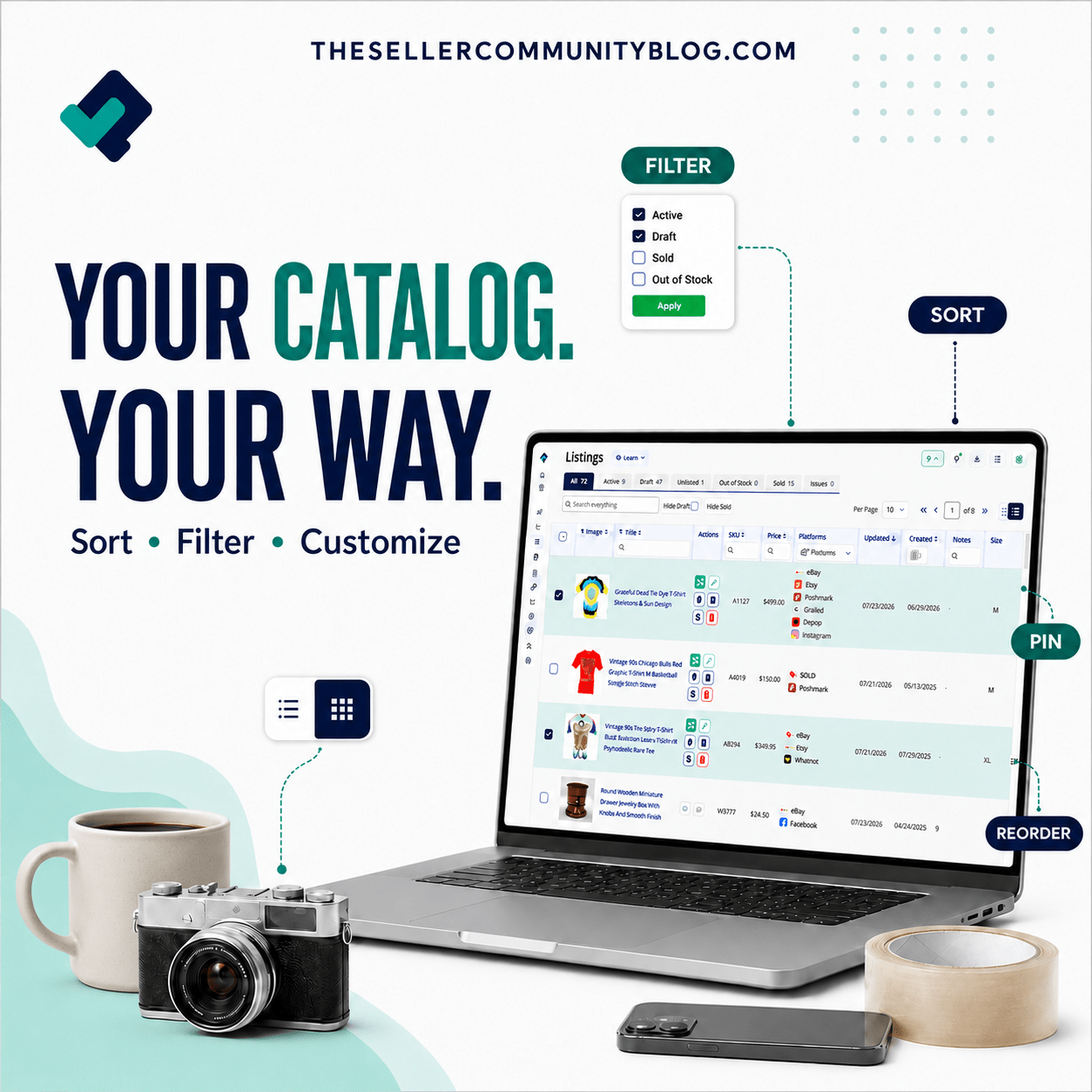

Resellers do not all manage inventory the same way, so their Catalogs should not all have to look the same.
Marketplaces such as eBay have long allowed sellers to customize how listings appear in their selling workspace. The List Perfectly Catalog gives resellers that same kind of control while bringing inventory from multiple selling platforms into one place.
You decide which listing details you want to see, where columns appear, which information stays visible, and how listings are sorted or filtered. One reseller may need SKU, quantity, price, and listing status at the front of the Catalog. Another may rely more heavily on brand, size, color, marketplace, or date information.
The List Perfectly Catalog can be customized around the way you view and manage inventory—not around a layout chosen for every reseller.
Watch this quick demo to see how to customize your Catalog view:
https://www.youtube.com/watch?v=UZUpnMtRjH4
Why a Customizable Catalog Matters to Resellers
Managing reseller inventory starts with being able to see the right information.
When every available field is displayed in a fixed order, important details can become harder to find. Sellers may spend more time scrolling sideways, searching through listings, or working around columns they do not use.
A customizable Catalog lets each reseller decide what belongs in view.
The listing information that is essential to one seller may be unnecessary to another. Even the same reseller may want to view inventory differently depending on whether they are reviewing drafts, finding unlisted items, preparing listings to crosslist, checking active inventory, or working with sold listings.
Customization makes the Catalog more useful because the layout can reflect the work being done.
Customize the List Perfectly Catalog Around the Way You Resell
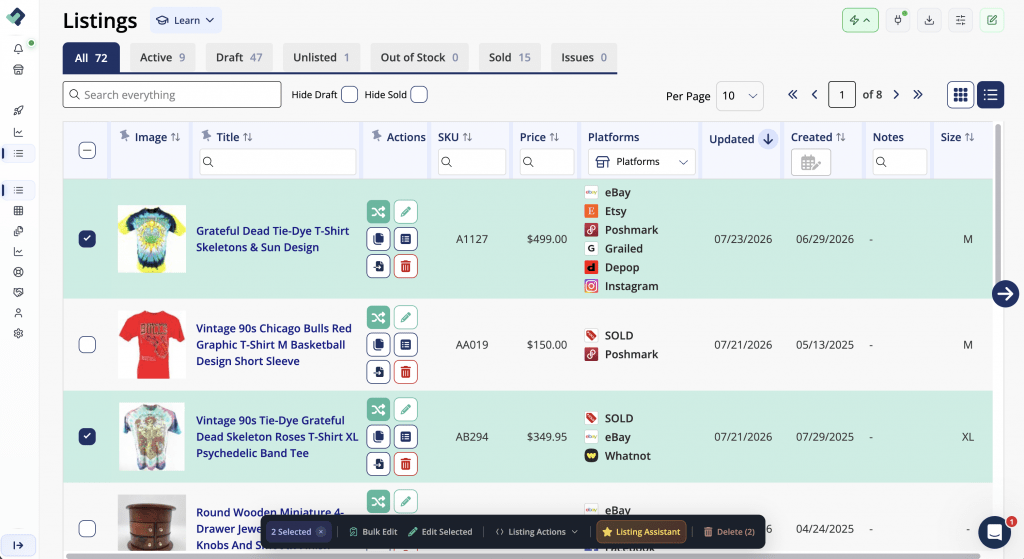
The List Perfectly Catalog gives you different ways to view your listings before you even begin changing the columns.
Choose Grid View when you want larger product images and a more visual way to browse inventory. Choose List View when you want to review more listing details in rows.
You can also choose whether to display 10, 25, 50, or 100 listings on each page.
From there, you can shape the Catalog around your own reselling process. Instead of adapting your business to a fixed inventory screen, you can adjust the Catalog based on the information and tools you use most.
Organize Catalog Columns Around the Listing Details You Use Most
Customizing the Catalog is about more than changing column width.
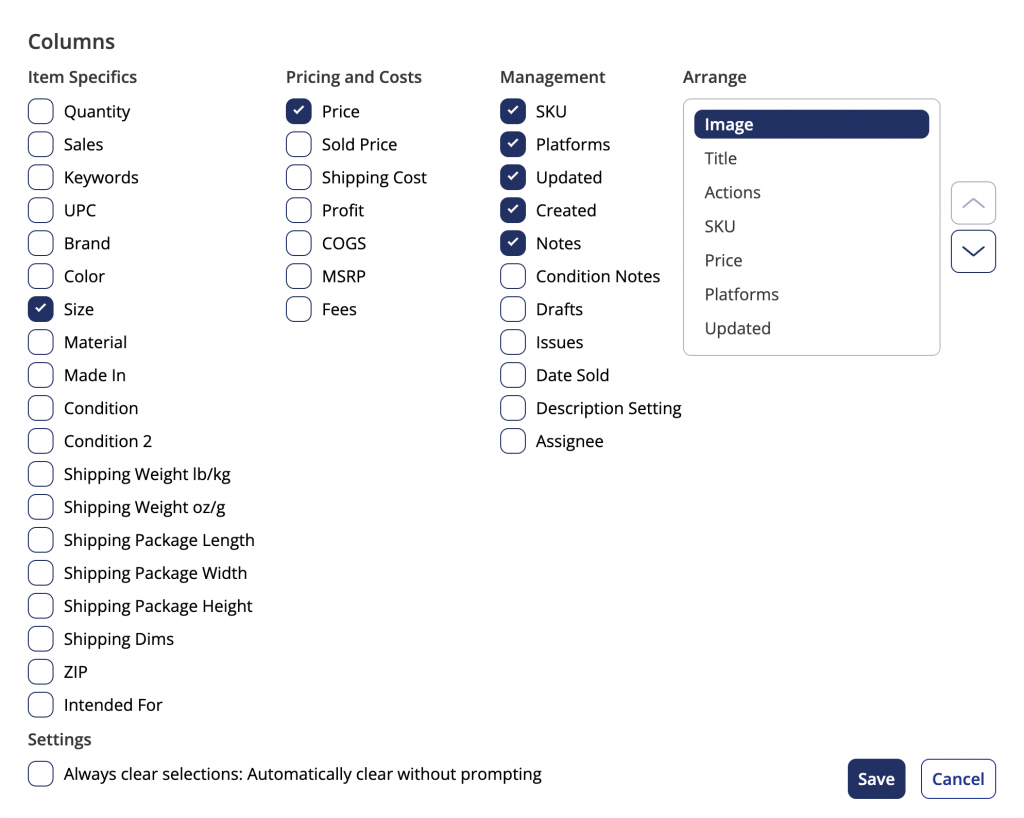
You can choose which columns appear, remove columns you do not need, and reorder the remaining columns so the most useful listing details appear where you want them.
You can also resize columns to create more room for information such as titles or make less important columns narrower.
Important columns can be pinned so they remain visible while you scroll horizontally through additional listing details. Only the first three columns can be pinned, so you can reorder your columns first and then pin the information you want to keep in view.
This means your Catalog does not have to look the way List Perfectly thinks it should look—or the way another reseller has arranged theirs.
You control:
- Which Catalog columns are displayed
- Which columns are hidden
- The order in which columns appear
- How wide or narrow each column is
- Which key columns stay visible while you scroll
A seller who works heavily with SKUs may place SKU information near the front. A reseller focused on product attributes may prioritize brand, color, size, or condition. Someone reviewing inventory performance may want price, quantity, date created, or marketplace information more visible.
The Catalog can reflect those differences.
Sort and Filter Listings to Focus on the Inventory You Need
A personalized Catalog view is also about controlling which listings appear and how they are arranged.
List Perfectly lets you sort many important listing fields in ascending or descending order, including:
- Image
- Price
- Title
- Quantity
- SKU
- Date Created
- MSRP
- Brand
- Weight
- Color
- Size
Only one column can be sorted at a time. When you sort a new column, the previous sort is cleared automatically.
Filters help narrow the Catalog even further.
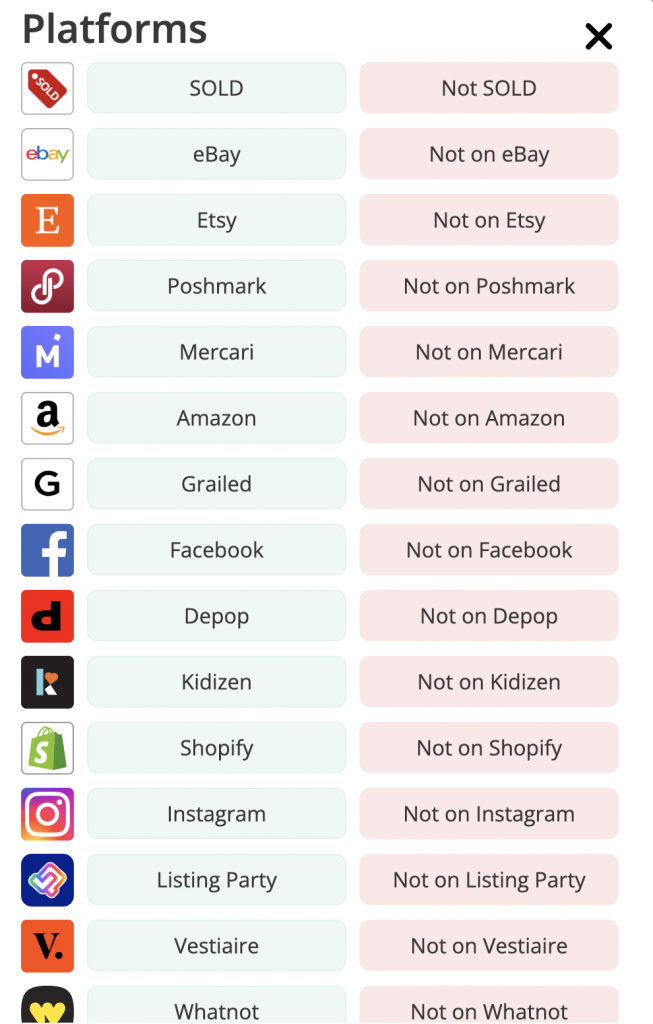
You can use text filters for listing details such as title, SKU, price, quantity, notes, keywords, UPC, and brand. Dropdown filters are available for Intended For, Condition, and Platforms. Date filters help you find listings by Date Created or Date Sold.
You can also use Catalog tabs to focus on listings by status:
- All: Every listing created, including drafts, unlisted, active, and sold
- Unlisted: Listings saved in List Perfectly that are not active on any marketplace, including ended listings
- Draft: Listings marked as drafts while creating or editing
- Active: Listings currently live on at least one marketplace
- Sold: Listings manually marked as sold inside List Perfectly
Hide Drafts and Hide Sold options can also remove those listings from the All tab when you do not need them in your current view.
Sorting, filters, and status tabs work together to help you focus on the right part of your inventory without searching through the entire Catalog.

View and Manage Listings Faster From One Customizable Catalog
The value of Catalog customization is not only visual.
It helps resellers spend less time navigating around inventory and more time working with the listings that need attention.
You can move from a broad view of the entire Catalog to a focused group of listings based on status, marketplace, dates, listing details, or other criteria. Once you find the listings you need, List Perfectly provides tools to continue managing them from the Catalog.
Quick Edit lets you update editable listing fields directly in the Catalog table. You do not have to select individual listing checkboxes before starting. Open Quick Edit, change the available fields, and save your work.
The Catalog also includes an Issues tab to help identify listings that may require attention.
Together, these options help turn the Catalog into more than a place where inventory is stored. It becomes a customizable control center for viewing, finding, and managing reseller listings.
Customize the List Perfectly Catalog on Every Plan
The customizable List Perfectly Catalog was once associated with Pro Plus. It is now available on every List Perfectly plan.
Members on Simple, Business, Pro, and Pro Plus can customize how listings are displayed in the Catalog.
Other List Perfectly tools and usage levels vary by plan, but every member can build a Catalog view that better matches the way they resell.
That includes choosing views, displaying the listing information they use, organizing columns, sorting inventory, applying filters, and using listing status tabs.
Your reseller inventory does not have to be managed through a one-size-fits-all layout.
With List Perfectly, you decide how you want to see and work with your listings.
Ready to create, import, crosslist, and manage inventory from one customizable Catalog?
Start List Perfectly with 100 free listings or five days, whichever comes first:
Frequently Asked Questions
Can every List Perfectly plan customize the Catalog?
Yes. Catalog customization is available on Simple, Business, Pro, and Pro Plus.
Can I choose which columns appear in my List Perfectly Catalog?
Yes. Use the Customize button to add or remove columns, reorder them, and control which listing details appear in your Catalog view.
Can I resize and pin Catalog columns?
Yes. Columns can be resized by dragging their edges. The first three columns can also be pinned so they stay visible while you scroll horizontally. Pinning a column also pins every column to its left.
Can I use Grid View or List View?
Yes. Grid View displays larger image thumbnails, while List View shows more listing information in rows.
Can I sort listings in the List Perfectly Catalog?
Yes. Supported fields can be sorted in ascending or descending order. Only one Catalog column can be sorted at a time.
What types of Catalog filters are available?
List Perfectly includes text filters, dropdown filters, and date filters. You can narrow listings by information such as title, SKU, brand, platform, condition, Date Created, and Date Sold.
What is the difference between Catalog tabs and filters?
Catalog tabs group listings by their current status, such as Active, Draft, Unlisted, or Sold. Filters narrow listings using specific information such as keywords, platforms, condition, price, or dates.
Can I hide drafts and sold listings?
Yes. Hide Drafts and Hide Sold can remove those listings from the All tab. Uncheck the options when you want them to appear again.
Can I edit listings directly in the Catalog?
Yes. Quick Edit allows you to change supported listing fields directly in the Catalog table and save those changes.