
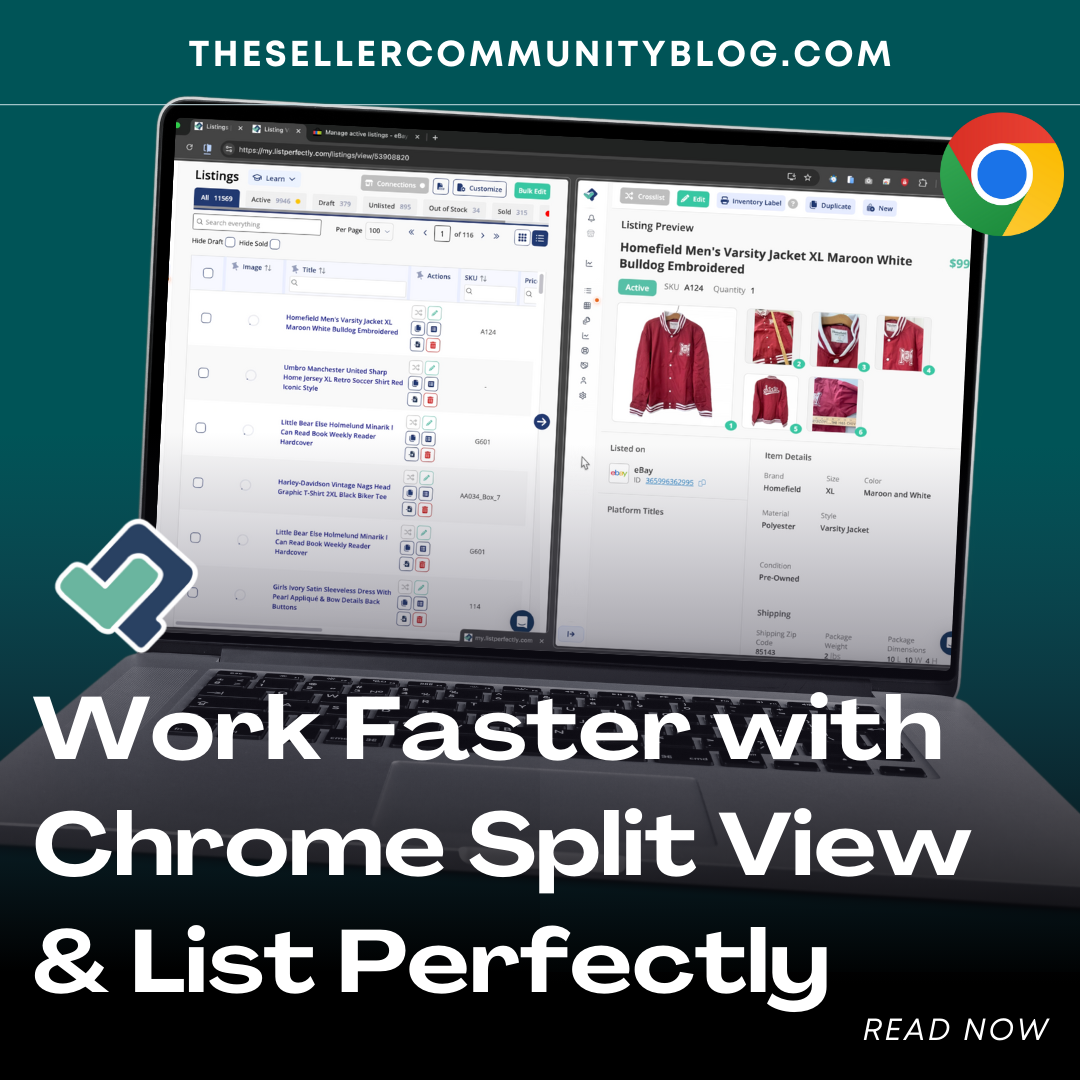

Google Chrome recently introduced a new Split View feature, and Chrome Split View for resellers has the potential to significantly speed up your workflow. Whether you’re researching comps, comparing marketplace details, or building listings in List Perfectly, Split View gives you a simple, efficient way to work side-by-side without switching back and forth between tabs.
This feature is especially useful for resellers who rely on multitasking while listing, making edits, or managing inventory across platforms like eBay, Poshmark, Depop, Mercari, Grailed, and more.
Below, we’ll walk through how Split View works, why it matters for resellers, and how it pairs perfectly with List Perfectly’s catalog, crosslisting, and listing-creation tools.

What Is Chrome Split View?
Chrome’s new Split View option lets you display two tabs side-by-side inside a single browser window. Instead of dragging windows around your screen or juggling multiple monitors, Chrome handles the layout for you.
For resellers, this creates a more streamlined workflow when you need to:
- View an existing listing while creating a new one
- Compare product details side-by-side
- Research comps while writing descriptions
- Reference measurements, keywords, or item specifics
- Copy details from one tab into your List Perfectly listing form
- Look at marketplace activity while updating your LP Catalog
Split View is simple to activate and works on any website, including List Perfectly.
How to Use Split View With List Perfectly
Using Split View takes only a few clicks:
- Right-click on any browser tab.
- Select Open in Split View.
- Choose the second tab you want displayed alongside it.
For example, you might open your LP Catalog on the left and a marketplace listing on the right. Or you can open a sourced item’s reference page next to your LP listing form.
This setup is particularly effective when:
- Building lots of listings quickly
- Doing research while entering details
- Referencing an old listing to create a new version
- Checking comps while adjusting pricing
- Reviewing drafts or templates while creating new items
Instead of switching tabs dozens of times, you get everything you need in one clean workspace.

How Resellers Benefit From Chrome Split View
Online sellers manage a large amount of information during the listing process. Split View reduces friction by letting you keep the most important reference pages visible at all times.
Here’s how this helps your business:
1. Faster Listing Creation
Copy titles, measurements, keywords, and item specifics without losing your place.
2. Better Research and Pricing
Review comps on marketplaces while simultaneously updating your LP Catalog listing.
3. More Accurate Listings
Having reference material visible reduces mistakes and ensures consistent details.
4. Smoother Multi-Marketplace Workflows
Use Split View to handle crosslisting, linking existing listings, updating descriptions, and modifying inventory.
5. Less Screen Switching and Mental Load
Everything stays visible and organized, helping you work more efficiently.
Why This Matters for List Perfectly Users
List Perfectly is built to centralize and simplify your listing workflow. Chrome’s Split View enhances that even further.
You can use Split View while:
- Creating listings with Listing Assistant
- Using Express Lister to build listings from images
- Crosslisting to multiple marketplaces
- Editing drafts or templates
- Reviewing your LP Catalog
- Checking eBay, Poshmark, or Depop comps
- Managing inventory updates and delist/relist workflows
It’s a simple browser feature that creates meaningful speed improvements for high-volume or multi-marketplace sellers.
Watch the Full Demo
See exactly how Chrome Split View works and how to use it with List Perfectly here: