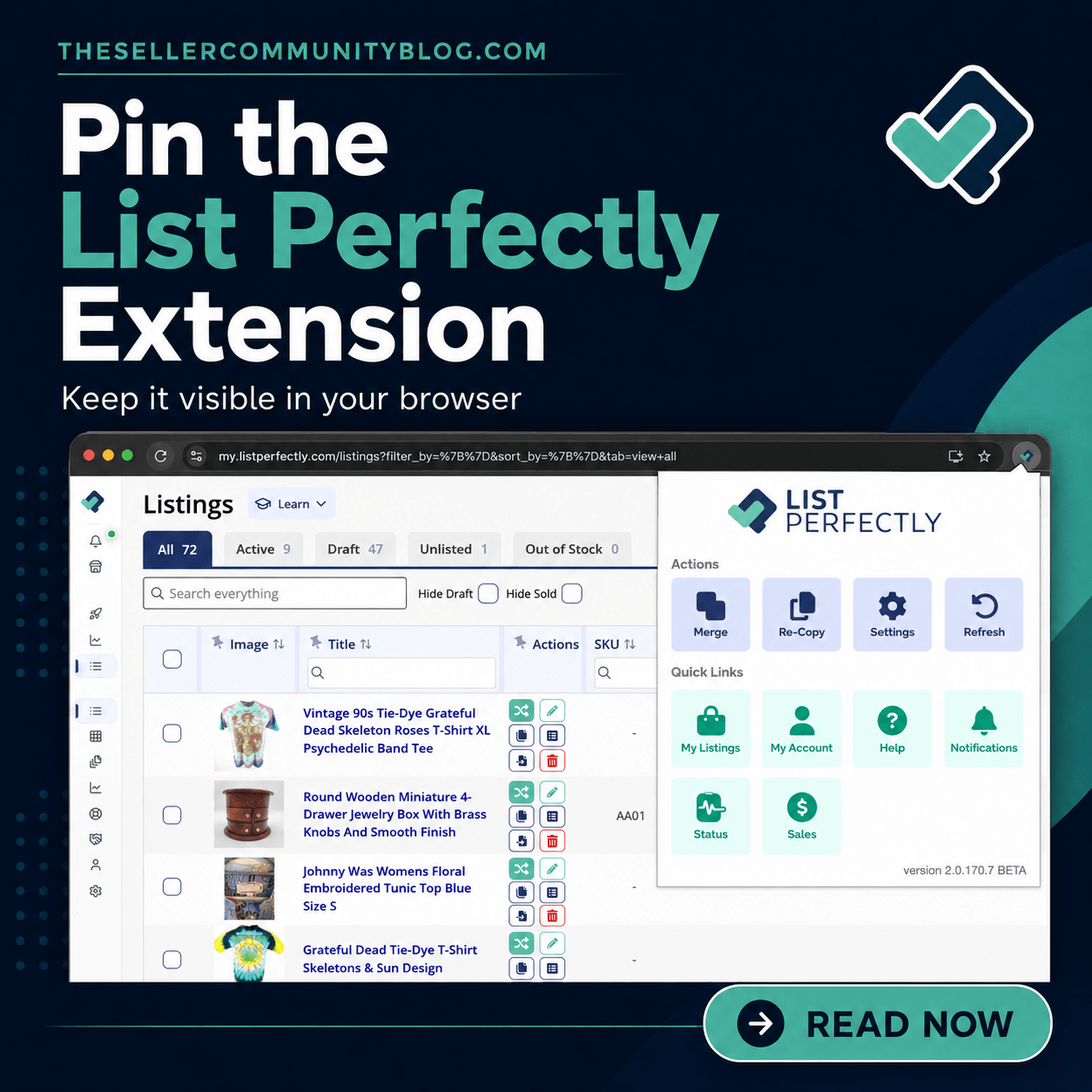

If you use List Perfectly in the Google Chrome browser on desktop or laptop, you will want to keep the List Perfectly Chrome extension enabled and visible in your browser toolbar.
This makes it easier to access extension settings, extension tools, and supported browser-based features while you work across supported marketplaces.
Here is how to enable and pin the List Perfectly Chrome extension in Google Chrome.
How to Enable the List Perfectly Chrome Extension in Google Chrome
- Open the Google Chrome browser on your desktop or laptop.
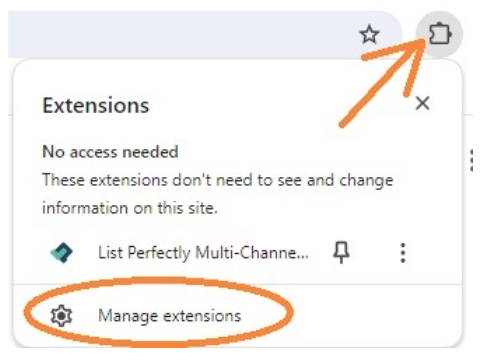
- Click the puzzle piece icon in the upper right corner of your Chrome browser.
- Click Manage extensions.
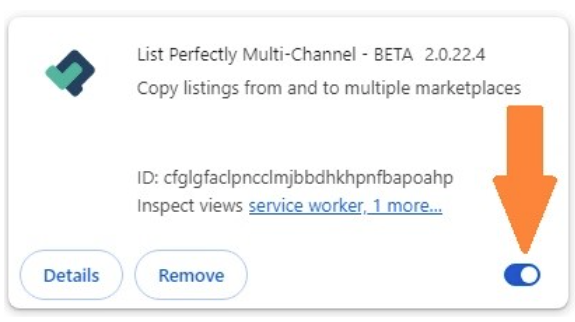
- Find List Perfectly in your list of Chrome extensions.
- Toggle the List Perfectly Chrome extension to the ON position.
Once the toggle is turned on, the List Perfectly Chrome extension is enabled in your browser.
How to Pin the List Perfectly Chrome Extension to Your Browser Toolbar
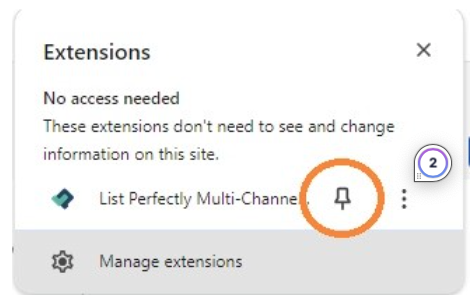
After the extension is enabled, you can pin it to your Google Chrome browser toolbar for faster access.
- Click the puzzle piece icon again.
- Find List Perfectly in your list of Chrome extensions.
- Click the pin icon next to List Perfectly.
Once pinned, the List Perfectly icon will appear in your browser toolbar so you can access it faster while listing, crosslisting, and managing inventory.
What If You Do Not See the List Perfectly Chrome Extension?
If you do not see the List Perfectly Chrome extension in your extensions list, it may not be installed yet.
List Perfectly members receive the correct extension link through List Perfectly. This helps make sure you install the right extension and follow the correct List Perfectly setup flow.
After the extension is installed, return to your Chrome extensions list, enable the extension, and pin it to your browser toolbar.
Why Pinning the List Perfectly Chrome Extension Helps Resellers
Pinning the List Perfectly Chrome extension is a small step, but it can make your reseller workflow smoother.
When the extension is visible in your browser toolbar, you can access it faster while importing listings, crosslisting inventory, updating existing listings, using Delist / Relist, and managing products across supported marketplaces.
If you are new to List Perfectly, this is also a good time to learn how to use your first listings wisely. Read Boost Your Sales With 100 Free Listings Using List Perfectly’s Listing Assistant to learn how members can use Listing Assistant AI to create listings from images, review the results, and crosslist faster.
If you are working on pricing before you list, read Unlock the Power of Accurate Pricing With List Perfectly’s New Pricing Tool. Pricing items correctly takes time and research, and List Perfectly’s pricing tools help sellers use Google Lens and eBay Pricing Lookup from inside the List Perfectly listing workflow.
If you sell on eBay, pricing strategy matters even more when costs are rising. Read eBay Selling and Rising Prices for more context on pricing, shipping, item specifics, and protecting profit margins.
Do I Need the Chrome Extension on Mobile?
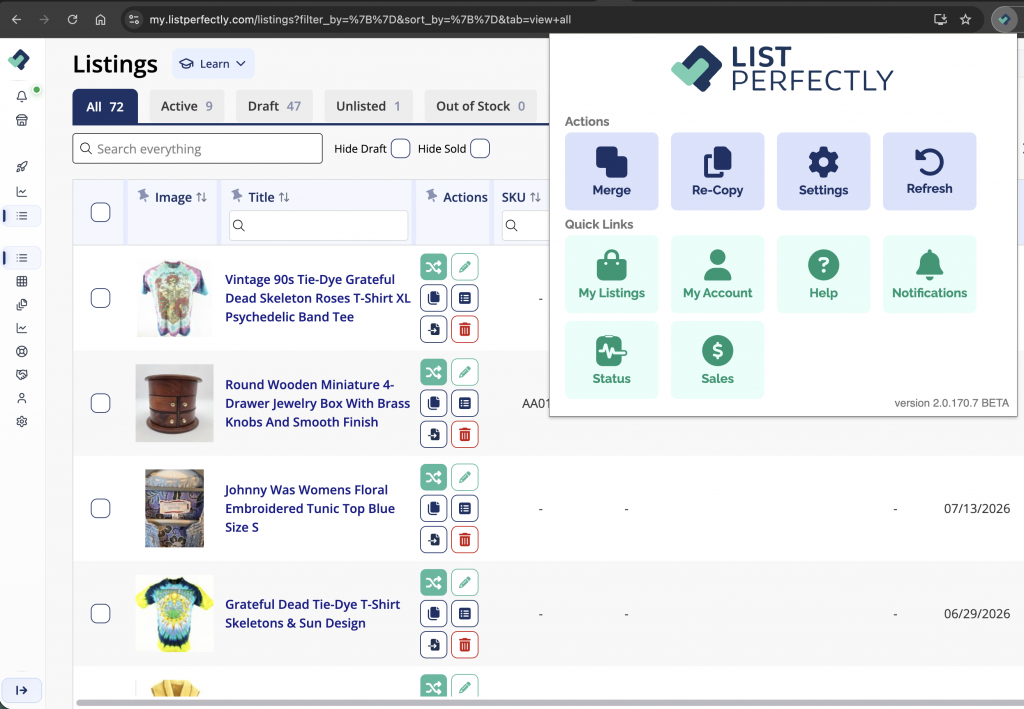
No. The List Perfectly Chrome extension is used on desktop or laptop for supported marketplace actions through Google Chrome or Microsoft Edge.
You can still use List Perfectly from your phone browser. List Perfectly Mobile works from any browser, including iPhone and Android. You do not need the Chrome extension to create, edit, organize, and manage listings from your phone.
Need Help Enabling the List Perfectly Chrome Extension?
List Perfectly provides guided setup, helper messages, update prompts, and in-platform support to help members get started.
If you need help, List Perfectly Customer Care is available 24/7/365. Click the help bubble in the lower right corner of your List Perfectly Catalog to contact support.
FAQ
How do I enable the List Perfectly Chrome extension?
Open the Google Chrome browser, click the puzzle piece icon, choose Manage extensions, find List Perfectly, and toggle the extension to the ON position.
How do I pin the List Perfectly Chrome extension?
Click the puzzle piece icon in Google Chrome, find List Perfectly, and click the pin icon. Once pinned, the List Perfectly icon will appear in your browser toolbar.
Why should I pin the List Perfectly Chrome extension?
Pinning the List Perfectly Chrome extension gives you faster access while importing, crosslisting, updating, delisting, relisting, and managing listings across supported marketplaces.
Is List Perfectly only a Chrome extension?
No. The List Perfectly Chrome extension is one part of the List Perfectly system. List Perfectly also includes the List Perfectly Catalog, Listing Assistant AI, crosslisting, inventory management, pricing tools, Sales & Analytics, reseller education, and community.
For a deeper explanation, read What Is a Google Chrome Extension? A Reseller Guide to Safer Crosslisting With List Perfectly.
Can I use the List Perfectly Chrome extension on my phone?
No. The List Perfectly Chrome extension is used on desktop or laptop for supported marketplace actions. You can still use List Perfectly Mobile from your phone browser.