
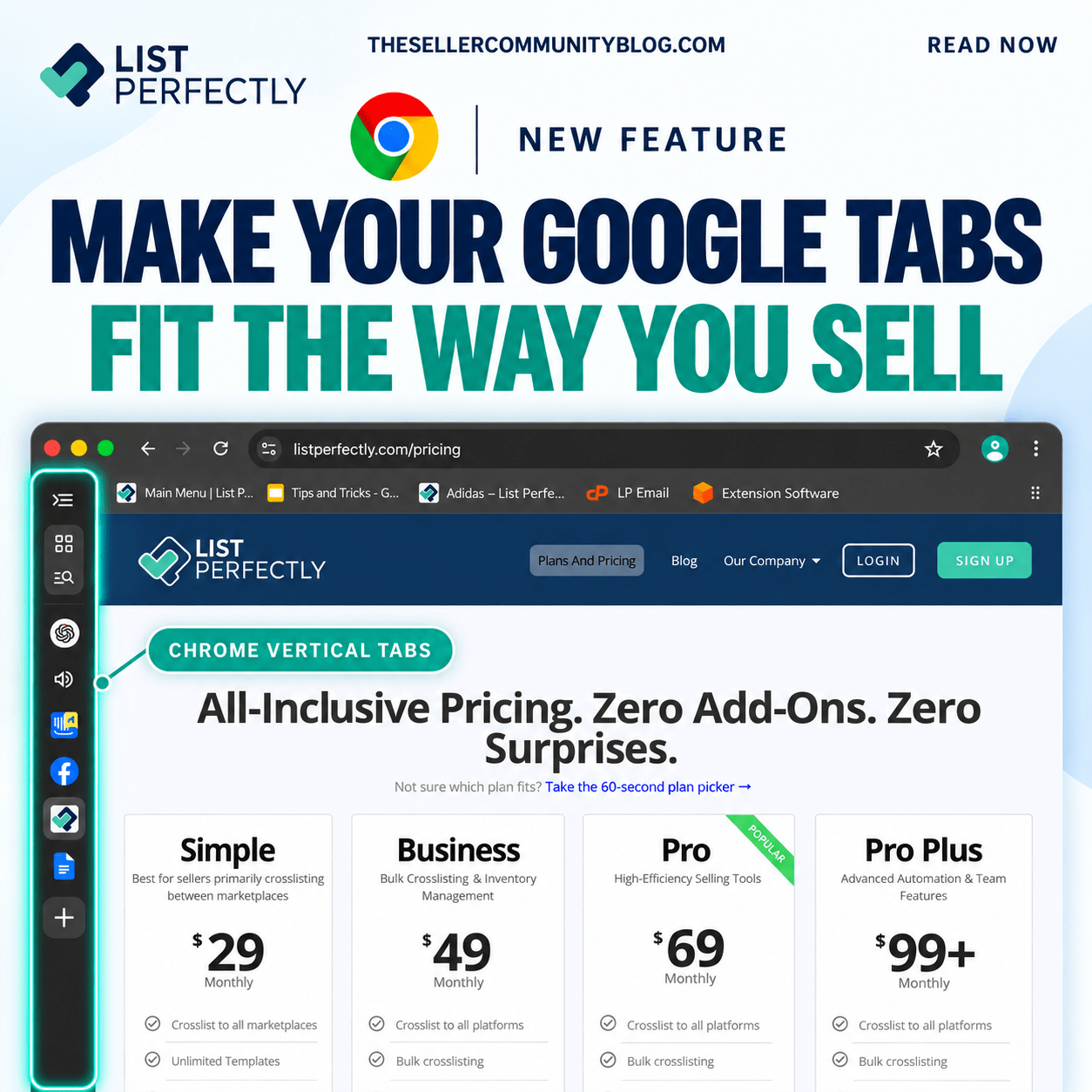

Google Chrome just gave online resellers a new way to organize marketplace tabs: vertical tabs.
For List Perfectly users working across multiple selling marketplaces, Chrome vertical tabs offer another way to arrange your browser workspace while importing, crosslisting, updating, and managing listings.
Instead of displaying your open tabs across the top of your browser, vertical tabs move them to the side of the Chrome window.
Google introduced vertical tabs as a new Chrome productivity feature, giving users the option to move open tabs to the side of the browser window.
See what’s new with Chrome vertical tabs from Google
What Are Chrome Vertical Tabs?
Chrome vertical tabs move your open browser tabs from the top of the Chrome window to a panel along the side.
According to Google, the vertical view lets you see page titles, scroll through your open tabs, and resize the width of the tab area to fit your workspace.
For resellers working across multiple marketplaces, that gives you another way to see and move between the marketplace pages open in Chrome.
Chrome vertical tabs are a Google Chrome feature. They do not change how List Perfectly works or how your marketplaces operate.
Read Google Chrome Help about managing vertical tabs

How to Turn On Vertical Tabs in Google Chrome
Switching your Chrome tabs from horizontal to vertical takes just a few clicks.
- Open Google Chrome.
- Right-click a tab or the blank space on the tab strip.
- Select Show Tabs Vertically.
You can also open Chrome Settings → Appearance → Tab position and select Vertical.
Chrome will move your open tabs to the side of the browser window. You can also resize the width of the vertical tab area.
See Google Chrome Help for the official vertical tabs instructions

Make Your Marketplace Tabs Fit the Way You Sell
Every reseller works differently.
Some prefer seeing marketplace tabs lined up across the top of Chrome. Others may prefer seeing page titles stacked vertically along the side, especially while moving between different marketplace pages during a crosslisting session.
With vertical tabs, you can adjust the width of the side panel and choose how much space you want the tab list to use.
That gives you another way to organize your Chrome workspace around the way you prefer to import, crosslist, update, and manage listings.
Resize Chrome Vertical Tabs to Show Marketplace Icons
Resize the vertical tab panel even narrower and your open marketplace tabs can appear in a compact icon view.
For resellers who quickly recognize marketplace logos, the icon view gives you a cleaner way to keep your selling marketplaces within reach while leaving more browser space for List Perfectly and the marketplace page you are working on.
[INSERT SCREENSHOT: Chrome vertical tabs resized to show marketplace icons]
This can be especially useful when you have several marketplaces open at the same time. Instead of displaying the full marketplace name for every tab, the compact view keeps the marketplace icons visible in a smaller space.
Google also allows Chrome users to resize the width of the vertical tab strip to fit their workspace.
See Google Chrome Help for vertical tab resizing and settings
Reseller tip: Try both layouts during your normal List Perfectly workflow. You may prefer horizontal tabs for some tasks, full vertical tab names for others, or the compact icon view when you want more room on your screen.
Chrome vertical tabs do not change how List Perfectly works. They simply change how Chrome displays the marketplace tabs you already have open.
Why Chrome Vertical Tabs Can Help Resellers Organize Marketplace Tabs
Resellers often move between multiple selling marketplaces during the same work session.
Vertical tabs give you another way to:
- View marketplace tabs in a vertical list
- Scroll through open marketplace pages
- Resize the tab area to fit your workspace
- Use a compact marketplace icon view
- Keep List Perfectly and selling marketplaces easy to reach
There is no need to change your List Perfectly workflow just to try Chrome vertical tabs.
If you want more information about the browser technology behind List Perfectly, visit:
What Is a Google Chrome Extension?
How to Switch Your Chrome Tabs Back to the Top
Vertical tabs are optional.
If you try them and prefer your marketplace tabs across the top of Chrome, you can switch back at any time.
Right-click your vertical tab area and choose Show Tabs Horizontally.
You can also go to Chrome Settings → Appearance → Tab position → Horizontal.
Google documents both vertical and horizontal tab options in Chrome Help:

Final Thoughts
Chrome vertical tabs give List Perfectly users another choice for how they view and organize marketplace tabs while crosslisting.
Try the vertical view during your next List Perfectly session. Resize the panel, try the compact marketplace icon view, and see which Chrome tab layout fits the way you sell.
Frequently Asked Questions
What are Chrome vertical tabs?
Chrome vertical tabs move your open browser tabs from the top of the Chrome window to a panel along the side.
Do I have to switch to Chrome vertical tabs to use List Perfectly?
No. Chrome vertical tabs are completely optional.
List Perfectly works whether you prefer your marketplace tabs across the top of Chrome or displayed vertically along the side.
Can I use Chrome vertical tabs while using List Perfectly?
Yes. Chrome vertical tabs can be used while working in List Perfectly and moving between your open marketplace tabs.
How do I turn on vertical tabs in Chrome?
Right-click a tab or blank space on the Chrome tab strip and choose Show Tabs Vertically.
You can also go to Chrome Settings → Appearance → Tab position → Vertical.
See Google’s official instructions
Can I resize Chrome vertical tabs?
Yes. Google Chrome allows you to resize the width of the vertical tab strip to fit your workspace.
A narrower layout can also give you a more compact view of the marketplace tabs you have open.
Can I switch back to horizontal tabs if I do not like vertical tabs?
Yes.
Right-click the vertical tab area and select Show Tabs Horizontally, or go to Chrome Settings → Appearance → Tab position → Horizontal.
You can switch between vertical and horizontal tabs based on the way you prefer to work.
See Google Chrome Help for both tab layouts
Do I need a Chrome extension to use vertical tabs?
No. Vertical tabs are a built-in Google Chrome browser feature.
Read Google’s announcement about Chrome vertical tabs
Why would an online reseller use vertical tabs?
Online resellers often work between multiple selling marketplaces. Vertical tabs provide another way to view, resize, organize, and move between those marketplace tabs while using List Perfectly.